
Introducing the MultiPortal Migration Tool: Move from VMware to Proxmox Without the Headaches
Discover the MultiPortal Migration Tool for seamless VMware to Proxmox migrations with warm migration, batch operations, and automated driver injection.
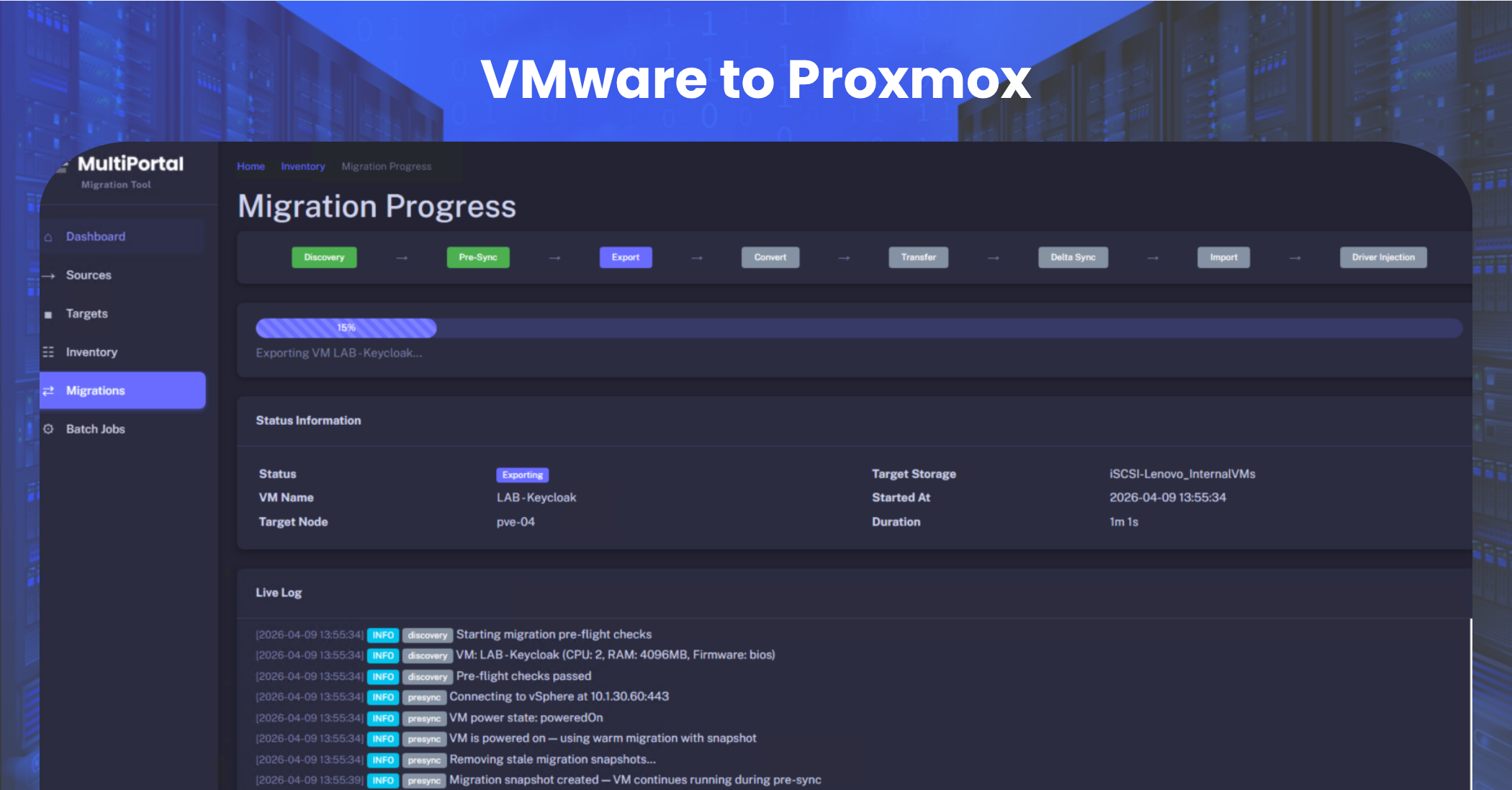
If you’ve been running workloads on VMware and you’re eyeing Proxmox, you already know the migration conversation isn’t just about moving disk images. It’s IP addresses. Storage drivers. Guest agents. It’s the difference between a smooth weekend cutover and a week of firefighting.
We’ve been there. We’ve done these migrations ourselves, hit every gotcha along the way, and built a tool to solve them. Today we’re giving you a first look at the MultiPortal Migration Tool, a purpose-built orchestration layer that takes the pain out of moving VMs from VMware to Proxmox.
Note: The screenshots in this post are from early in the development cycle. The UI will continue to be refined and improved ahead of the public beta.
Why Migrations Are Painful Today
Anyone who’s attempted a VMware to Proxmox migration at scale knows the drill. You export a VM, import it into Proxmox, and then the real work starts. The NIC hardware changes, so your static IPs are gone. The disk comes in as SATA, but you need SCSI for performance, except the guest OS doesn’t have the right storage driver yet. VirtIO drivers won’t install the SCSI component unless there’s a SCSI disk present. Every single VM needs manual attention.
Now multiply that by dozens or hundreds of VMs and you’ve got a project that nobody wants to own.
“But Doesn’t Proxmox Already Have an Importer?”
It does, and credit to the Proxmox team, the built-in ESXi Import Wizard is a solid starting point. For a handful of VMs on a single ESXi host, it gets the job done. But if you’re a service provider migrating production workloads at scale, you’re going to hit its limits pretty quickly.
It’s one VM at a time. There’s no batch mode, no queue, no way to select 20 VMs and let it work through them. Proxmox’s own documentation actually recommends serializing imports because running them in parallel can overwhelm the ESXi API’s connection limit, which results in rate limiting, hanging I/O, and failed imports.
The source VM has to be powered off. The importer does offer a “live-import” mode where the VM boots on the Proxmox side while data streams in, but the source still needs to be shut down first. And if the import fails partway through, any data written on the Proxmox side is lost.
There’s no post-migration automation. Once the disk lands, you’re on your own. Network reconfiguration, VirtIO driver installation, storage controller changes, BIOS and boot order adjustments. All manual, all per VM. The Proxmox migration guide literally tells you to write down your guest network config beforehand so you can restore it by hand.
vSAN backed storage isn’t supported. If your VMs are sitting on vSAN, the importer can’t touch them. You’d need to move the disks to another datastore first.
No visibility or audit trail. There’s no migration history, no searchable log of past imports, and no centralised dashboard to track what’s been migrated and what’s still waiting.
The Proxmox importer is great for getting started. But for production migrations, especially at service provider scale, you need something that handles the full lifecycle. Not just the disk copy.
What the MultiPortal Migration Tool Does Differently
Our Migration Tool orchestrates the entire migration workflow from start to finish. You configure your VMware ESXi source and Proxmox target, select your VMs, and the tool handles the rest, stepping through each phase automatically. vCenter support is on the roadmap and coming soon.
A Full Migration Pipeline
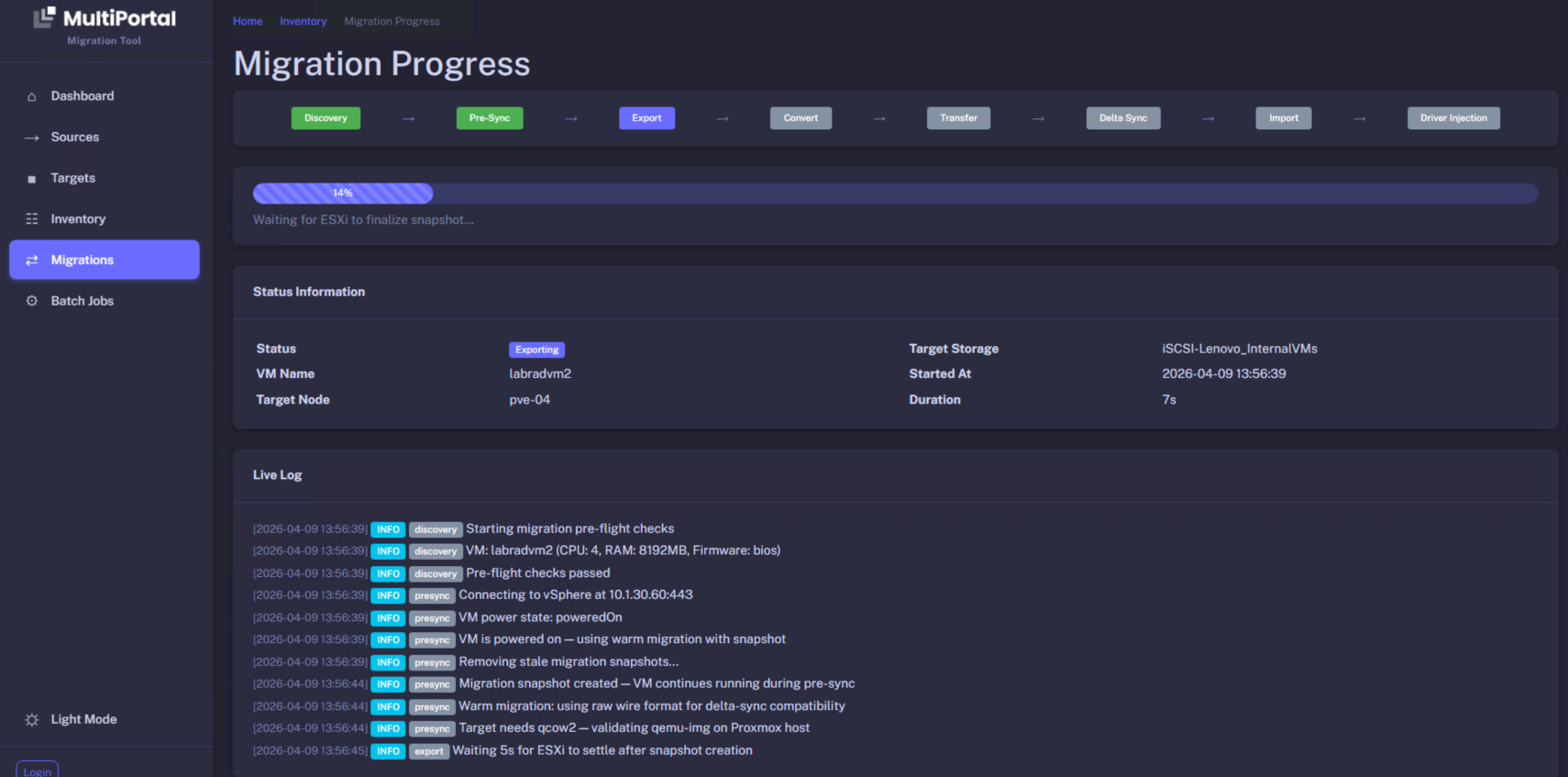
Every migration moves through a clear, multi-stage pipeline: Discovery -> Pre-Sync -> Export -> Convert -> Transfer -> Delta Sync -> Import -> Driver Injection. You can see exactly where each VM is in the process at any time.
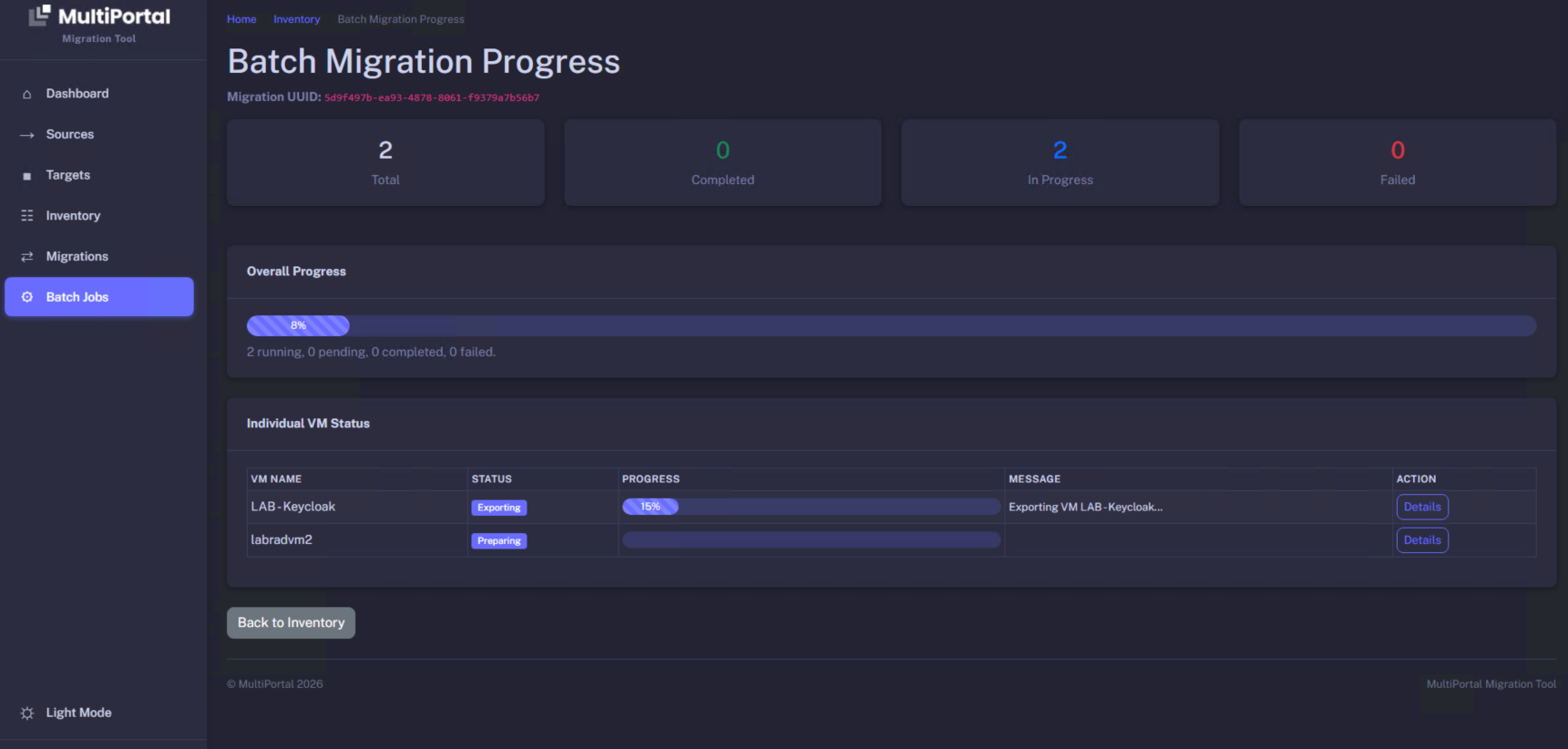
Pre-flight checks run before anything starts. The target environment gets validated. And you get a real-time live log showing exactly what’s happening at every step. No black boxes, no guessing.
Warm Migration
This is the big one for production workloads. Your VMs stay powered on and running while the initial data gets exported and transferred. A snapshot captures the state, the bulk of the data pre-syncs in the background, and then a final delta sync grabs any changes right before cutover.
The result? Your maintenance window shrinks from hours of downtime per VM to a brief cutover once the delta sync completes. That’s a completely different conversation with your customers compared to “we need to shut everything down for a day.”
Batch Operations
You don’t have to migrate VMs one at a time. Select multiple VMs, kick off a batch job, and the tool orchestrates everything in parallel. The Batch Migration Progress view gives you a dashboard showing total, completed, in progress, and failed counts, with the ability to drill into any individual migration for details.
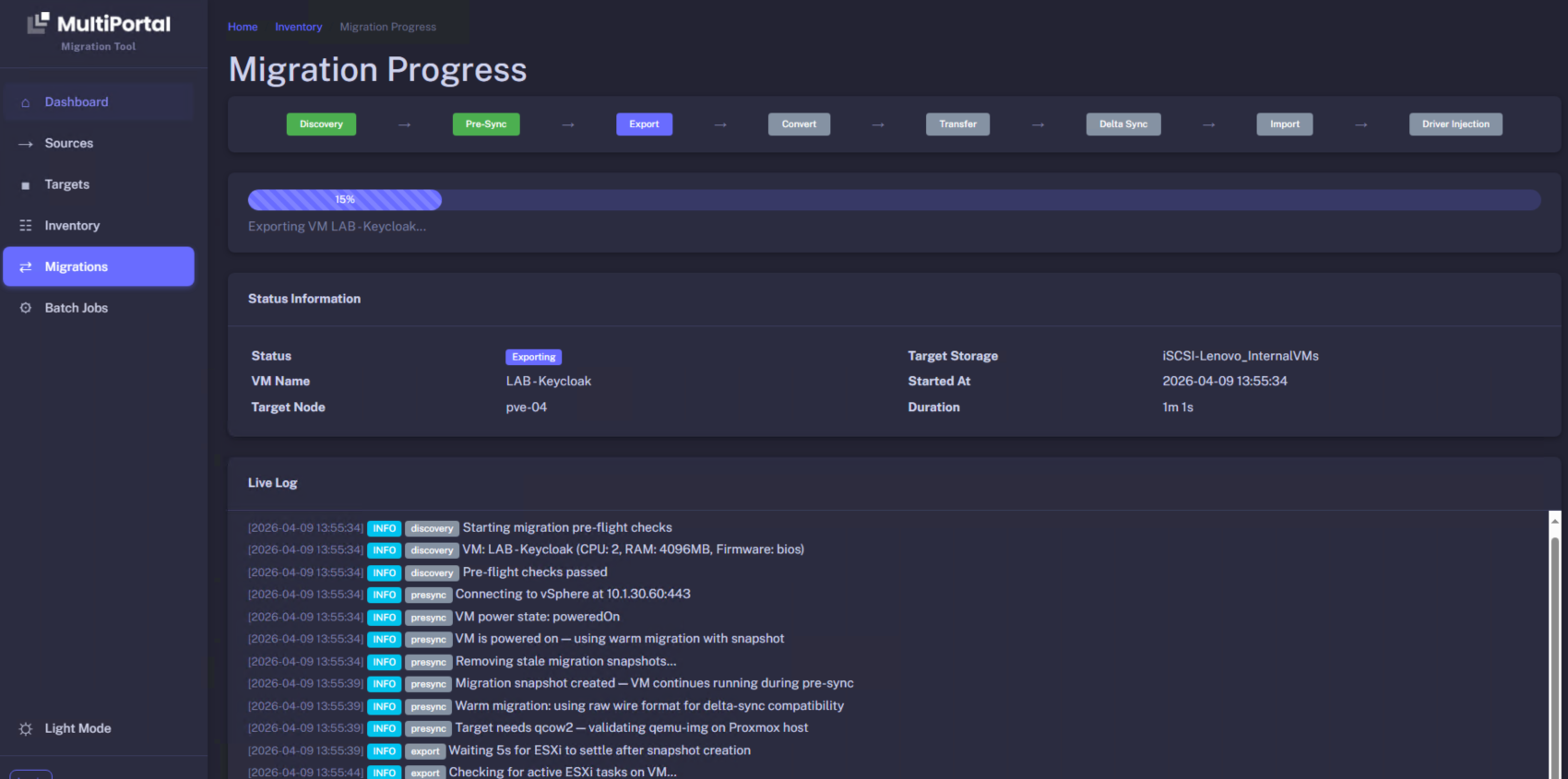
Whether you’re moving 5 VMs or 50, the workflow doesn’t change.
Migration History and Tracking
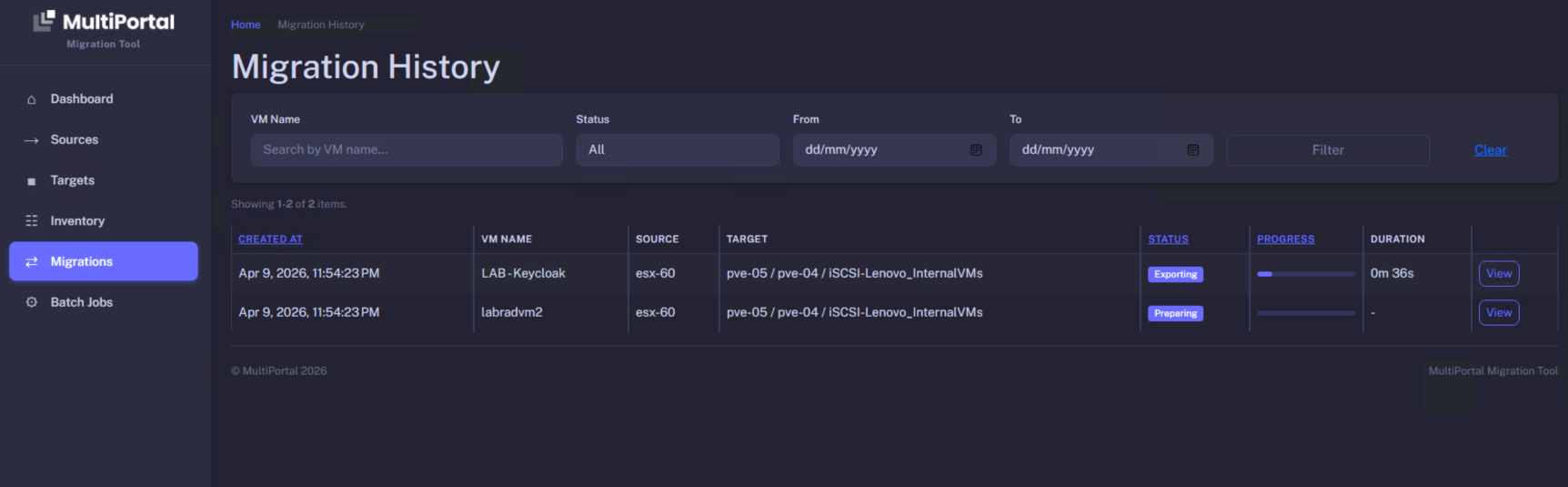
Every migration is logged and searchable. Filter by VM name, status, or date range. You’ve always got a clear audit trail: what was migrated, where it came from, where it went, and how long it took.
Automated Driver Injection
The last stage of the pipeline handles VirtIO and storage driver challenges automatically. No more logging into every migrated VM to manually install drivers or mess with storage controllers. It’s baked into the workflow.
Risk Avoidance and Rollback
This is something we put a lot of thought into, because when you’re migrating production workloads, the scariest question isn’t “will it work?” It’s “what happens if it doesn’t?”
The short answer: your source VM is never touched. It stays on VMware, powered on and running, throughout the entire migration. We don’t delete it, we don’t modify it, we don’t interfere with it. The warm migration process takes a snapshot and works from that, so the original VM keeps serving traffic like nothing happened.
That means rollback is dead simple. If the migrated VM isn’t working properly on the Proxmox side, you just switch back to the source. No restoring from backups, no scrambling to rebuild. Your original workload is right where you left it.
On top of that, the tool runs pre-flight checks before it starts anything. It validates the VM specs, confirms the target environment is ready, and checks that the Proxmox host has the tools it needs (like qemu-img) before a single byte of data moves. If something isn’t right, you’ll know before the migration begins, not halfway through it.
The tool also cleans up after itself. Stale migration snapshots from previous attempts get removed automatically, so you’re not left with orphaned snapshots cluttering up your ESXi hosts.
Combined with the full audit trail in Migration History, you’ve always got complete visibility into what happened, when, and where. If something needs investigating after the fact, the data is there.
Built for Service Providers
If you’re running a hosting environment or managing VDCs for your customers, this tool is built with you in mind. Configure your VMware sources and Proxmox targets, select VMs from your inventory, and run migrations across tenants without disrupting individual customer environments.
The goal is reducing migration timelines from weeks to days, and making the process repeatable. Same workflow, every time.
Current Status and What’s Next
The Migration Tool is currently in closed beta testing. We’re running it internally and with a small group of testers to validate workflows and iron out edge cases. We’re aiming to open it up for public beta in the coming weeks so more service providers can get hands on it and help shape the final product.
And one more thing worth mentioning: once the Migration Tool hits production, it will be included with your paid MultiPortal subscription at no extra cost. No add-ons, no per-migration fees. If you’re a MultiPortal customer, you get it.
If you’re planning a VMware to Proxmox migration, or you’ve been putting one off because of the complexity, we’d love to hear from you. Book a demo or reach out to us directly.
More to come. Stay tuned.