
Coming in MultiPortal 1.3: Transits, Edge Routing for Your Tenants
Transits give your tenants their own edge routers, with firewall, port forwards, DHCP, routing and site-to-site VPNs, created and managed in MultiPortal. A tenant can have as many as it needs. Coming in MultiPortal 1.3, included with MultiPortal Premium.
Every tenant you host needs a way in and out of their network: a public address, a firewall, port forwards for their services, and often a VPN to their office. Most service providers build a router for each customer by hand, document it, and log in to it whenever a customer asks for a change.
MultiPortal 1.3 adds transits. A transit is an edge router for a tenant, which you create, configure and monitor in MultiPortal, alongside the tenant’s virtual data centre. A tenant can have as many transits as it needs, for example one for each site, office or environment. The screenshots below are from the current 1.3 build and may change before release.
What transits do
A transit sits at the edge of a tenant’s networks and handles the traffic that crosses it:
- Firewall rules for traffic coming in, going out, and passing between the tenant’s own networks.
- Port forwards that publish the tenant’s services on a public address, including on a connection that gets its address from DHCP.
- NAT so the tenant’s private networks can reach the internet.
- DHCP for the machines on the tenant’s networks, with fixed leases where needed.
- Static routes for the tenant’s traffic.
- Site-to-site VPNs over IPsec, to the tenant’s offices and other sites, with one tunnel for each pair of networks.
For service providers
- Firewalling, published services and site-to-site VPNs become services you can sell alongside compute and storage.
- Setting up a new customer’s edge is a single action in MultiPortal.
- Every transit’s configuration is kept in MultiPortal, so you are not relying on one engineer’s knowledge or an out-of-date document.
- Each change is reviewed before it is applied, and a failed change leaves the previous configuration in place.
- You can see why something isn’t working without logging in to the router.
For your customers
- Each transit belongs to one tenant, with its own addresses, rules and VPNs.
- Nothing changes on a transit until someone applies the change.
Managing transits
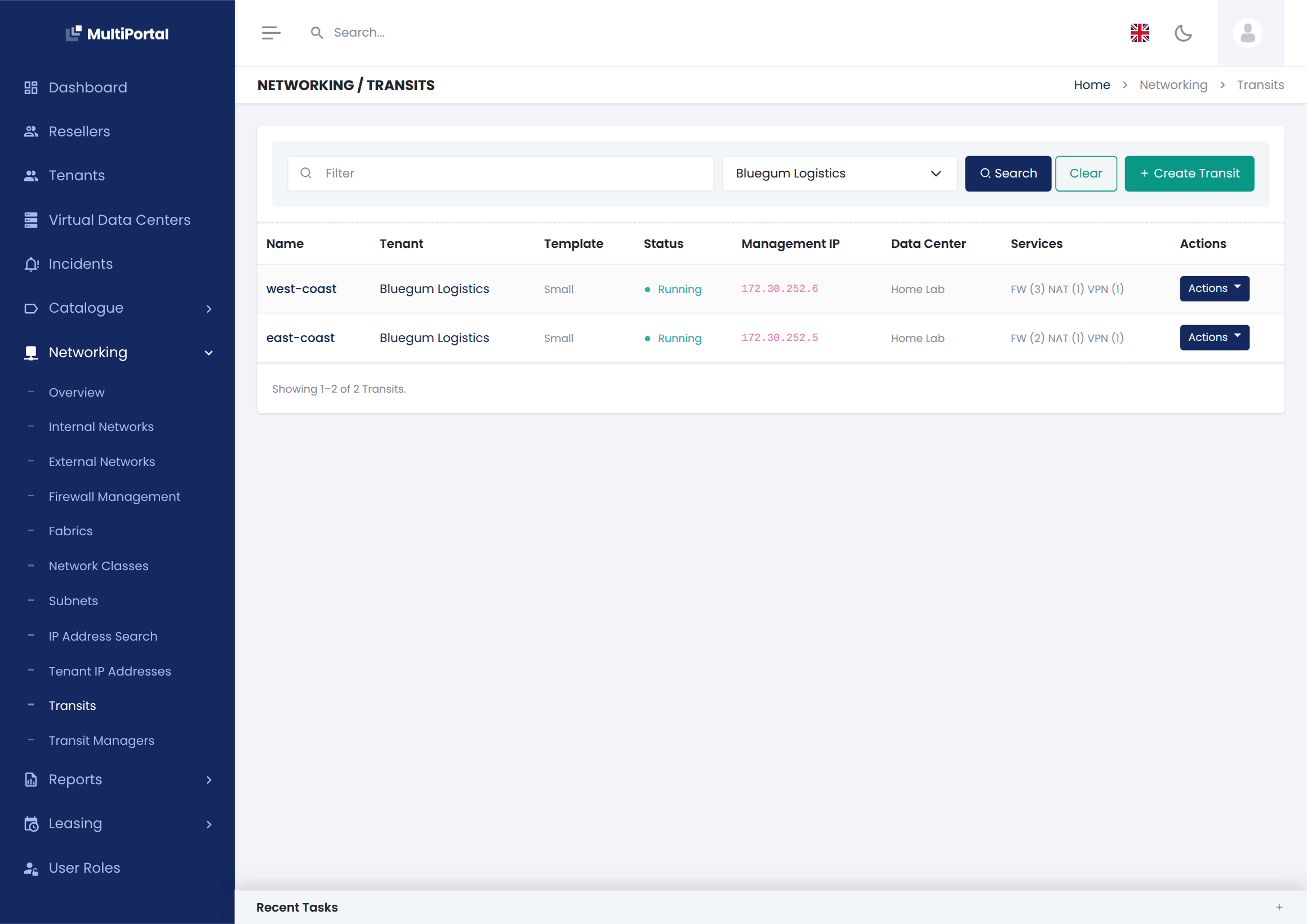
Transits are listed in MultiPortal with the rest of a tenant’s resources. The list shows each transit’s status, data centre and services. From there you can create a transit, change its configuration, attach more of the tenant’s networks, and power, rebuild or delete it.
A tenant’s transits in MultiPortal, with their firewall, NAT and VPN counts.
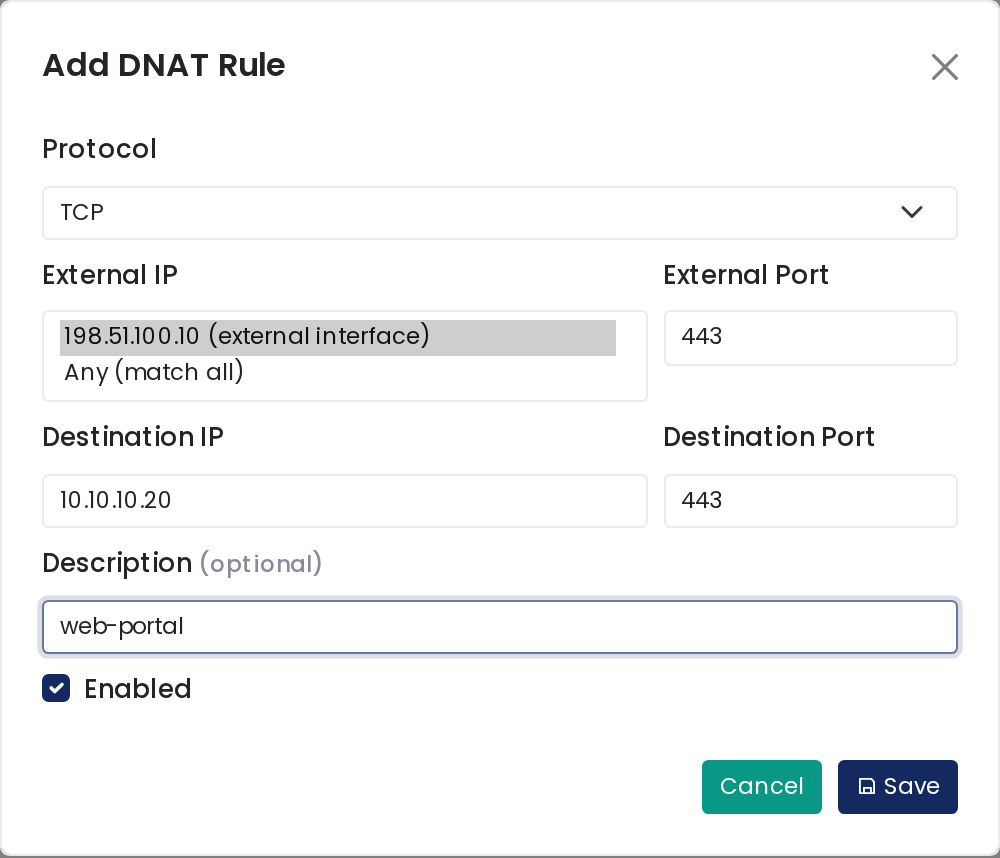
When you add a port forward, the form lists the addresses on the transit’s external connections. If a connection gets its address from DHCP, choose Any (match all) and the forward follows whatever address the connection has.
Applying changes
Edits to a transit go into a draft, so you can make several related changes and apply them together. Before you apply, MultiPortal shows exactly what will change. A change counts as applied only after the transit confirms it. If it doesn’t, the previous configuration stays in place and the change isn’t retried automatically.
Each applied version is kept, so you can see what a transit was running at any point.
Site-to-site VPNs
When a VPN connection doesn’t come up, MultiPortal shows which stage failed and the reason the remote router gave, such as failed authentication or rejected tunnel settings. If some tunnels are up and others are down, each tunnel shows its own status, so you know which settings to check with the customer.
Transits use current encryption settings by default, with older settings available for older remote routers. You can also set the exact settings the remote end needs.
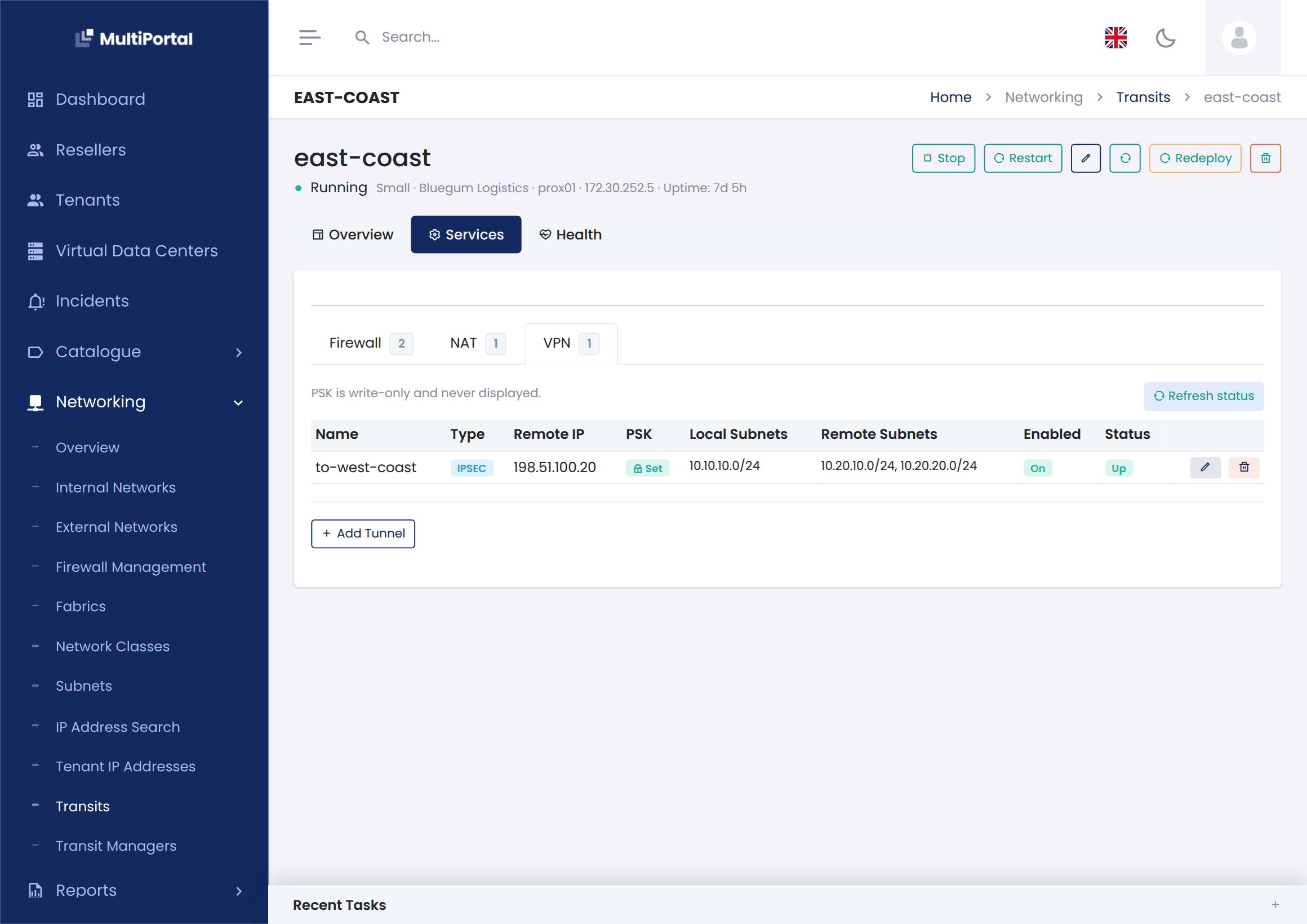
A transit’s VPN connection to another site in MultiPortal, shown as up.
Troubleshooting
From MultiPortal you can view a transit’s live state and logs, check what it can reach, and run a diagnosis that records its results. If you need direct access to the router, you can open a terminal session.
Compared with hand-built routers
| Task | Hand-built router | Transit |
|---|---|---|
| Set up an edge router for a new customer | Build the router, configure its addresses, log in and set it up | One action in MultiPortal |
| Change a firewall rule or port forward | Log in to the router and edit it live | Edit a draft, review it, apply it |
| Find out what changed | Check the documentation, if it’s current | Every applied version is kept |
| Recover from a bad change | Fix it from the console, if you still have access | The previous configuration stays in place |
| Fix a VPN that won’t connect | Read the logs on both routers | See the failed stage and the remote router’s reason for each tunnel |
How transits are delivered
Transits are run by Transit Manager, a component that you install on your own cluster from MultiPortal. It creates each transit, keeps its configuration in line with MultiPortal, and confirms every change. You don’t need to work in Transit Manager directly; everything is done from MultiPortal.
To install it, you fill in one form in MultiPortal with where it should run and which networks it should use.
Availability
Transits are coming in MultiPortal 1.3 and will be included with MultiPortal Premium.